Somewhere around week three, Recents is forty items long, three of them matter, and the one you need is the one you named "Untitled". You have a task about a client quote sitting next to one about a flight booking, and no way to tell them apart at a glance.
The controls that fix this are already in the sidebar. They are also easy to miss, and one of them takes thirty seconds and changes what the sidebar is for.
So this guide starts with the account you actually have, not the one you wish you had set up properly. Part One is a repair job you can do before your coffee goes cold. Part Two is the setup that stops it happening again. Part Three is the part that gives you time back rather than just tidiness.
📌 Want the clicks without the reading? The How Do I card is the same material as a lookup you can keep inside your own Cowork, pinned in your sidebar. Get the card →What's inside
Part OneFix what you already have
Twenty-five minutes, and you can stop here and still be better off than you were.
Module 01
Group by Project
Start here because it is the cheapest thing in the guide and it changes what you are looking at.
Recents has a filter panel, and inside it a Group by control offering Date, Type, Project, Unread, Status and None. Most people never open it, so the sidebar stays a flat chronological list. Set it to Project and it becomes a map of your business instead of a history of your typing.
- Open the filter control at the top right of Recents.
- Under Group by, choose Project.
- While you are in there, set Status to Active. That hides finished work without deleting anything, which is the safest way to shorten a long list.
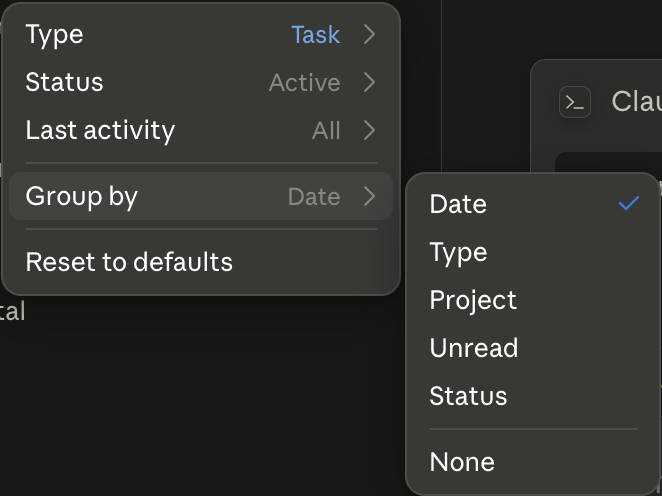
If Project doesn't suit you, try Status. Some people work in daily cycles rather than by business area, and grouping by where things stand beats grouping by what they belong to. Reset to defaults at the bottom of the panel undoes any of this.
Module 02
File the strays
Grouping by Project only helps if things are in projects. Most accounts have a pile of tasks that were started before projects existed, or started from the wrong place, and they are the reason the sidebar still looks wrong after Module 01.
These are not stuck. Every task menu carries Change project and Remove from project. Anything can be filed properly whenever you notice.
- In the filter panel, temporarily set Group by to None and Status to All, so nothing is hidden from you.
- Work down the list. For anything you would reopen, use Change project and put it where it belongs.
- Anything you would not reopen, Archive as you go.
- Set Group by back to Project and Status back to Active when you are done.
On a busy account this takes about twenty minutes. It is the highest-value twenty minutes in this guide.
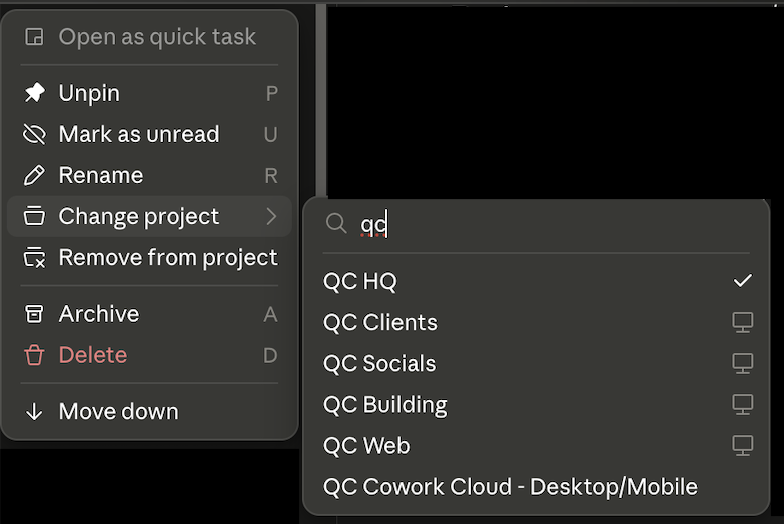
The submenu has a search box. Once you have more than a handful of projects, type the first few letters rather than scrolling. Same for the folder picker in Module 05.
Module 03
Archive, don't delete
Both sit in the same menu, one above the other, and they are not the same decision. Archive takes something out of your active view and leaves it retrievable. Treat Delete as permanent.
| Action | Use it when |
|---|---|
| Archive A | The work is finished, or it went nowhere, but you might want to see what was said. This is the right answer almost every time. |
| Delete D | The task holds something that should not exist: pasted client data, a credential, a genuine mistake. |
| Remove from project | You want it out of a project without filing it anywhere else yet. Use Change project instead if you know where it should go. |
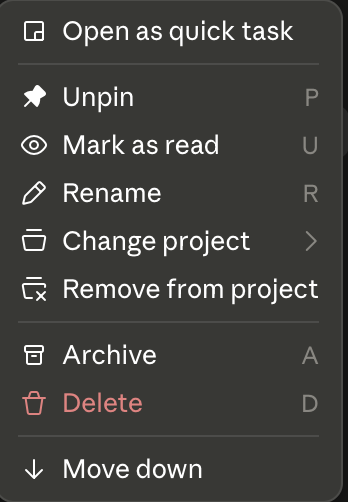
Archiving a project takes its metadata out of the interface but does not remove anything from your computer. Your folder and its files stay exactly where they are.
Part TwoSet it up so it stays
Part One was the repair. This is the part that means you only do it once.
Module 04
Projects are areas, not jobs
One reliable way an account gets messy again is treating a project like a to-do item. You create "Rebrand the website", finish it, and now you have a dead project and nowhere obvious for the next website job.
Projects hold their own files, instructions and memory, and a project's memory does not carry into the next project. That makes them behave like departments.
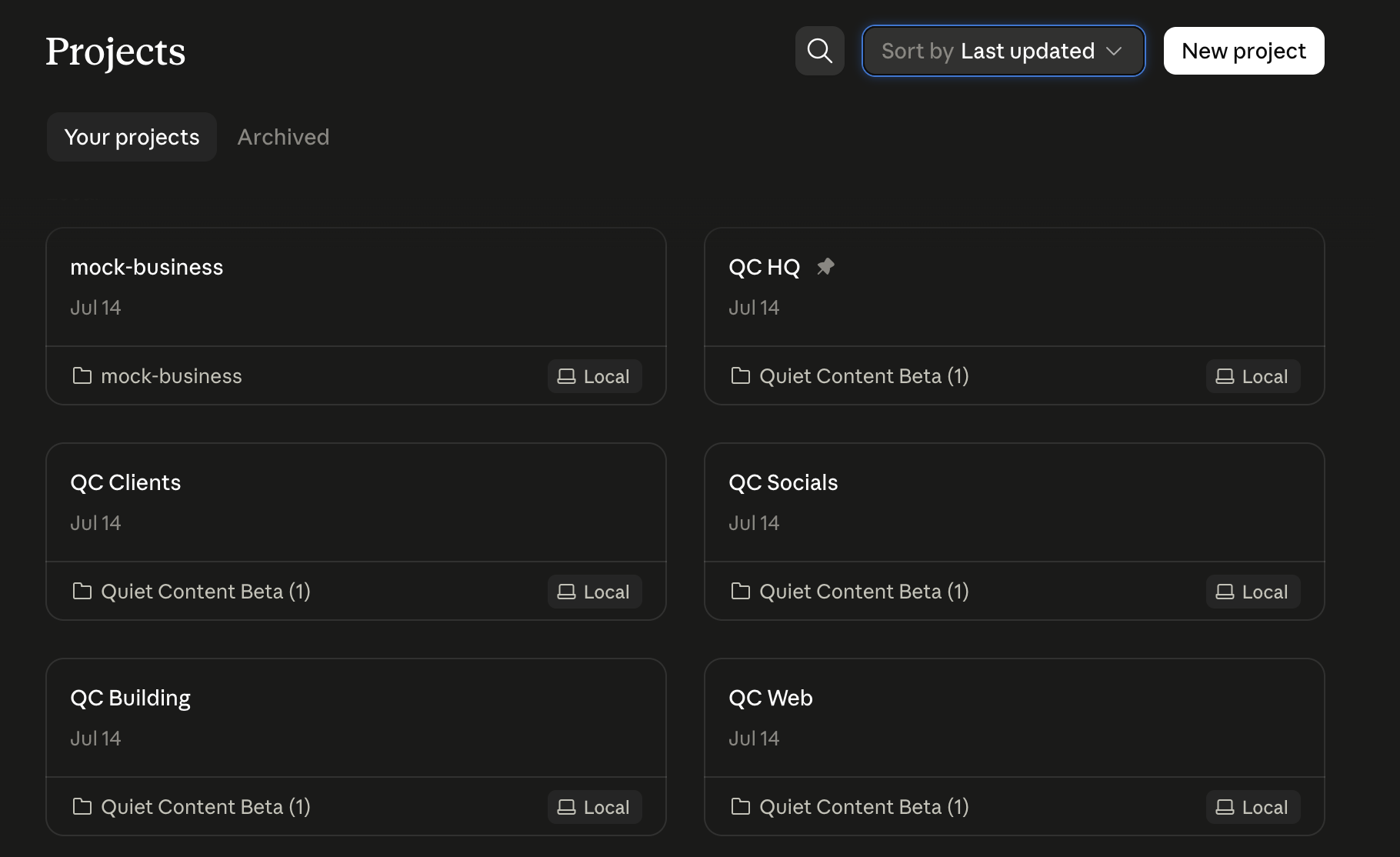
A workable shape is a small fixed set of business areas, plus one project per active client if you do client work. The fixed set rarely changes. The client set grows and shrinks with your book. If your list is long, check the length is coming from clients rather than from jobs that should have been tasks.
A project should still make sense in six months with entirely different work inside it. "Client onboarding" passes. "Onboard Sarah" does not.
Typical areas for a solo business: HQ for planning and admin, Marketing for anything customer-facing, Clients or one project each, and Website or Product for the thing you sell.
Module 05
Folder, instructions, memory
Three settings on one project, and they do different jobs. Getting the difference straight is what stops you rewriting instructions to fix a problem that lives somewhere else.
The folder is what the project can read. A project without one is a project where you re-explain your business every time. Point it at a real folder on your computer and put the documents in there that you find yourself saying out loud: your offer, your pricing, who you serve, how you write.
Instructions are what you decide. They apply to every task in that project. There are two other layers: global instructions at Settings > Cowork apply everywhere, and folder instructions apply when that folder is selected. Project instructions usually do the most work of the three.
Memory is what accumulates, with its own visibility setting. If a project starts behaving in a way you did not ask for, look at memory before you rewrite the instructions.
- What this project is for, in one line.
- Where things get saved. Name the folders. "Drafts go to content/drafts, never the folder root."
- The corrections you are tired of making. Spelling, tone, formats you do not want.
If a rule is true across your whole business it belongs in global instructions, not pasted into five projects. Rules kept in five places drift apart within a month.
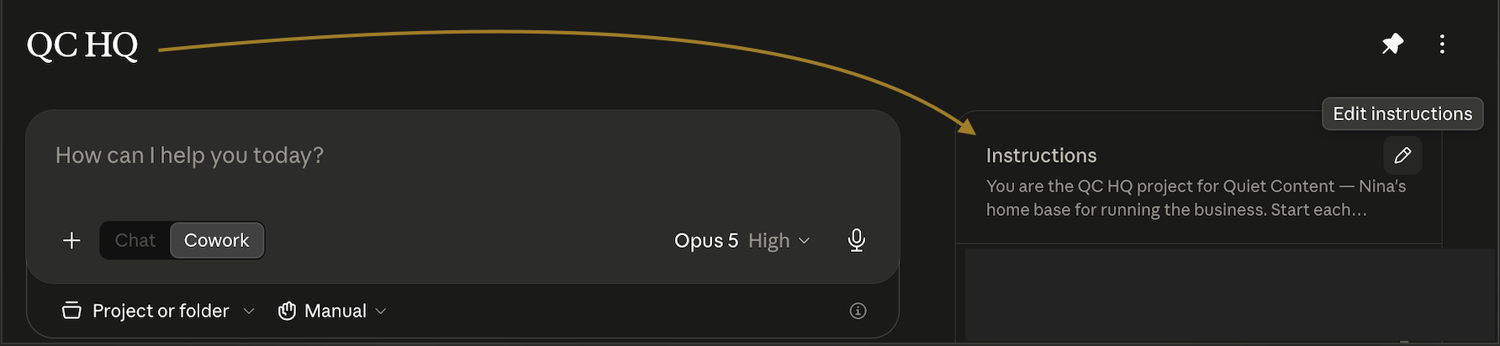
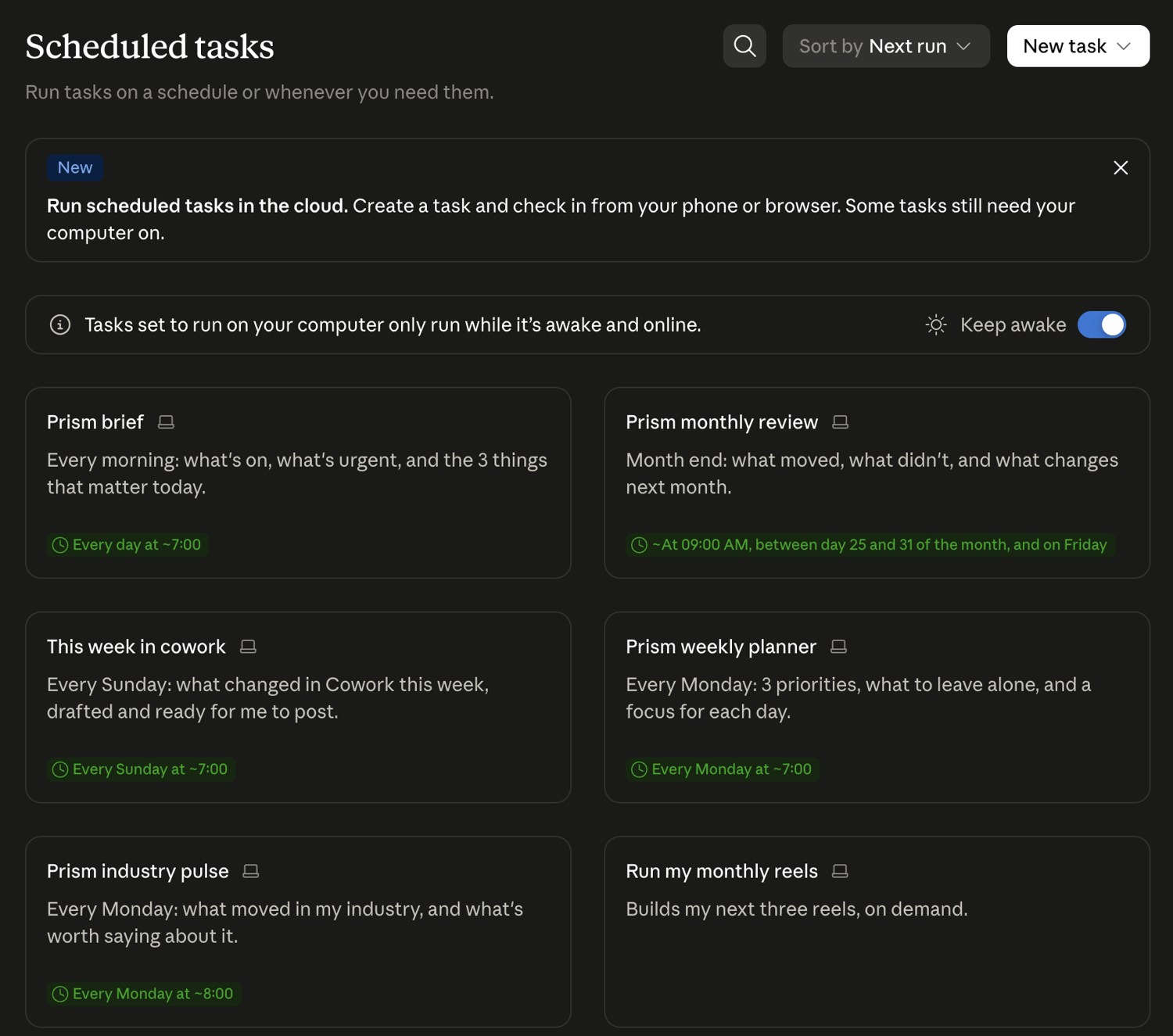
Worth knowing before you build a routine: a scheduled task can run in the cloud or on your computer. Anything set to run on your computer only runs while that computer is awake and online, which is what the Keep awake toggle on the Scheduled screen is for. If a routine has to work with the laptop shut, keep its inputs in your Claude account or a connector rather than a local folder.
Also on that bar: the control beside the folder picker sets how much Claude checks with you before acting. Manual asks before each action, Auto lets Claude self-review for safety, Skip runs without checks. Manual is right while you are learning what a project does.
Module 06
Name tasks like you'll search for them
Tasks are named automatically from your opening message, which is fine at six and useless at sixty. "Desktop is the start" made sense the day you typed it.
Rename from the menu, or with R. Use the shape verb, object, qualifier: "Draft July newsletter" rather than "Newsletter", "Quote: Marshman kitchen reno" rather than "New enquiry".
The naming convention is the easy half. The real habit is renaming the moment a task turns out to be about something other than your first message. That is the drift point, and it is where every unfindable task comes from.
Module 07
Pin what's live, not what's loved
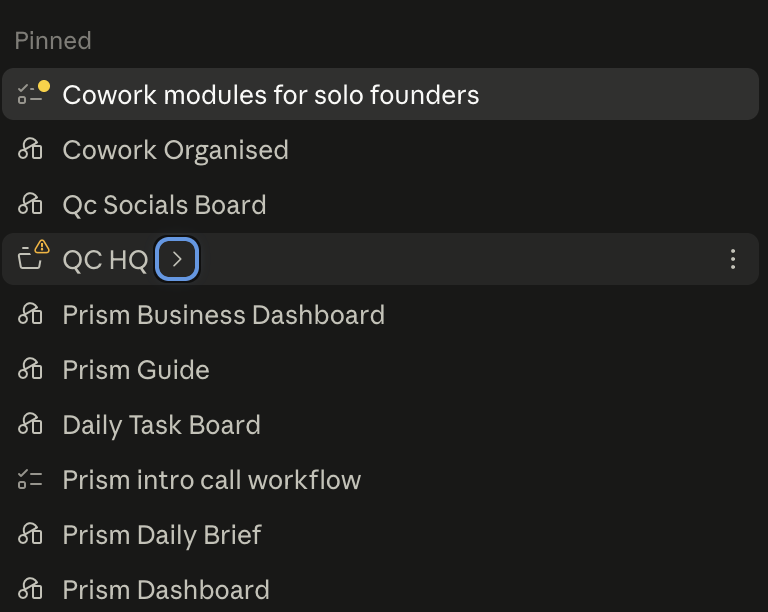
Pinned is the most useful part of the sidebar and the quickest to become useless. It works when it holds what you are working on this week. It stops working when it becomes a favourites list, because then it is Recents with extra steps.
Tasks, artifacts and whole projects can all be pinned, and pinning the project itself is worth doing for anything you open daily. Pinned items can be reordered with Move up and Move down, so the order can carry meaning.
- Pin and unpin with P.
- Keep it to what fits on screen without scrolling. If you are scrolling Pinned, it has stopped telling you what is live.
- Order it deliberately: this week's work at the top, reference dashboards and artifacts at the bottom.
- Unpin the moment something is finished. That is the whole discipline.
Part ThreeMake it give time back
Parts One and Two stop the mess. These two stop the repetition, which is the larger cost.
Module 08
Handover notes, because tasks don't merge
Every long-running task eventually sprawls. Three days of work, four changes of direction, and the decision that actually matters is buried on screen eleven. The instinct is to merge it into a cleaner task. There is no merge.
What works instead is a handover note. You move the conclusions out and leave the mess behind.
Before you abandon a sprawling task, ask for this:
"Write a handover note to [folder]/handover-[topic].md. Cover what we decided and why, what we tried that didn't work, what's still open, and the exact next step. Assume the reader has no memory of this conversation."
Then archive the old task, start a fresh one in the right project, and open with "read handover-[topic].md and pick up from the next step".
The context moves. The mess does not.
This is also the recovery move when a task has gone wrong. Rather than arguing a long task back onto the rails, extract what is good and start clean.
Module 09
Turn it into a skill, or a schedule
Open a task and two options appear at the top of its menu that are not there otherwise: Schedule and Turn into skill. Between them they cover almost everything you currently do by reopening an old task and editing the prompt.
Turn into skill converts what you just did into something you can trigger by name. The rule worth adopting: the second time you ask for something, keep it. Not the first, because you are still working out what you want. Not the fifth, because you have already paid for it four times.
The qualifier matters as much as the rule. A skill made from a messy task bakes the mess in, so run the job once cleanly and correct it until the output is what you would actually send. Then turn that into the skill.
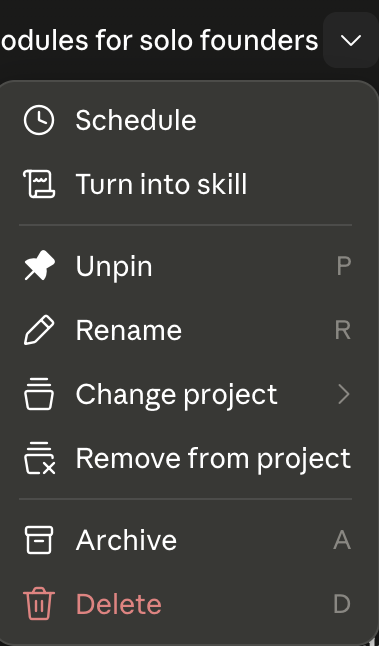
Schedule is for the other case: not a job you repeat on demand, but one that runs on a rhythm. A Monday plan, a Friday wrap, a weekly inbox sweep. Scheduled tasks live in the Scheduled section and run remotely, so they keep going whether or not your computer is awake.
If you decide when it runs, it is a skill. If the calendar decides, it is a schedule. Some things are both: a monthly review can be a skill you can also trigger by hand on the odd month you want it early.
Get the task working properly first. Scheduling a task that was not right yet just produces a wrong answer on a timetable.
Last thingTen minutes on a Friday
None of this survives without a small habit. Ten minutes at the end of the week and the account you set up in Part Two is the account you still have in six months.
- Unpin what finished this week. Pin what you are picking up on Monday, in order.
- File any strays with Change project. Archive what is done.
- Rename anything you could not identify at a glance.
- Ask the second-time question: did you repeat anything this week? Turn it into a skill.
Worth making this a scheduled task itself. The routine that maintains the system may as well be part of the system.
If you only do three things
Set Group by to Project. Thirty seconds. It changes what the sidebar is for.
Spend twenty minutes with Change project. File the strays you already have, archive the rest.
Turn one repeated job into a skill. The second time you ask for something, keep it.
And keep the everyday clicks within reach: the How Do I card has the exact click-path for all of this. It takes about a minute to save it as an artifact and pin it in your own sidebar, so the answer sits next to the work rather than in a browser tab.
Still deciding what to give it in the first place? Which jobs to hand over first sorts a week into what goes and what stays.
Cowork keeps changing
Menus move, settings appear, and guides like this one go out of date quietly. When something in here stops being true, I rewrite it and send a short note saying what moved and what it means for a one-person business. Sometimes that is weeks apart, sometimes months. No schedule, and nothing sent for the sake of sending.
Or skip the setting up
Everything in this guide is yours to do yourself, free, and it works. But if what you actually want is the outcome rather than the project, that is what I am for. Quiet Content builds calm, working AI setups for solo founders — one tool set up properly, rather than five half-implemented.
More reading: the blog · other field guides · Privacy · Quiet Content